


Shopify Traffic but No Sales? The 15-Point Fix List for Your First 30 Days
November 19, 2026 | by Abdisalat Mohamed
Disclosure: some links in my content are affiliate links. If you sign up through them I may earn a commission at no extra cost to you.
If your Shopify store has traffic but no sales, the cause is usually one of three things: the traffic isn’t real (bots or the wrong visitors), something in your checkout is broken or surprising, or your store doesn’t give a first-time visitor enough reason to trust it. The good news is that you can check all three yourself, mostly with free tools already inside Shopify.
This guide is for new store owners in the US and other English-speaking countries who are in their first weeks after launch. Instead of a list of random tips, you get 15 checks in the order I’d run them, grouped into a 30-day plan, with where to look in your Shopify admin for each one.
First, I check the entire checkout process, including payment methods, shipping rates, and order confirmation emails, to make sure customers can place orders without any issues. I also do a quick check on mobile because the store needs to work smoothly for customers on every device before handing it over to the client.
Why is my Shopify store getting traffic but no sales?
Before you change your theme or spend more on ads, find out which part of the journey is failing. A sale needs four things to go right: a real visitor arrives, they find a product they want, they trust you enough to try checkout, and checkout works. A problem at any step looks the same in your dashboard: visits, no orders.
That’s why the checklist starts with the traffic itself. There’s no point rewriting product pages if most of your “visitors” were never people.
Week 1: Is your traffic real, and is the store actually open?
1. Filter out bot sessions
Bots can inflate your session count and make your conversion rate look far worse than it is. Shopify added a “Human or bot session” filter to its sessions reports in October 2025. Open a sessions report in Analytics, add a filter, choose “Human or bot session” and select Human. You can also add it as a dimension to see both side by side.
Several merchants in the Shopify Community report that the default dashboard still includes bot traffic, so build your own filtered view rather than trusting the headline number.
2. Check where your sessions come from
Shopify’s acquisition reports include Sessions by referrer and Sessions by location. Look for two red flags: large numbers of sessions from countries you don’t ship to, and referrers you’ve never heard of. Shopify’s own guide to bot traffic lists sudden spikes with no clear source and traffic from unexpected regions as warning signs.
If your real, human traffic is only a handful of visitors a day, that’s a traffic problem, not a conversion problem. Jump to point 15.
3. Make sure the store is public
It sounds obvious, but check it. In your admin, go to Online Store > Preferences and look at the store access setting. If private mode (the password page) is still on, visitors see a password screen instead of your products. Shopify’s help center notes that stores on a trial may be asked to complete a step before the password can be removed.
4. Find where people drop off
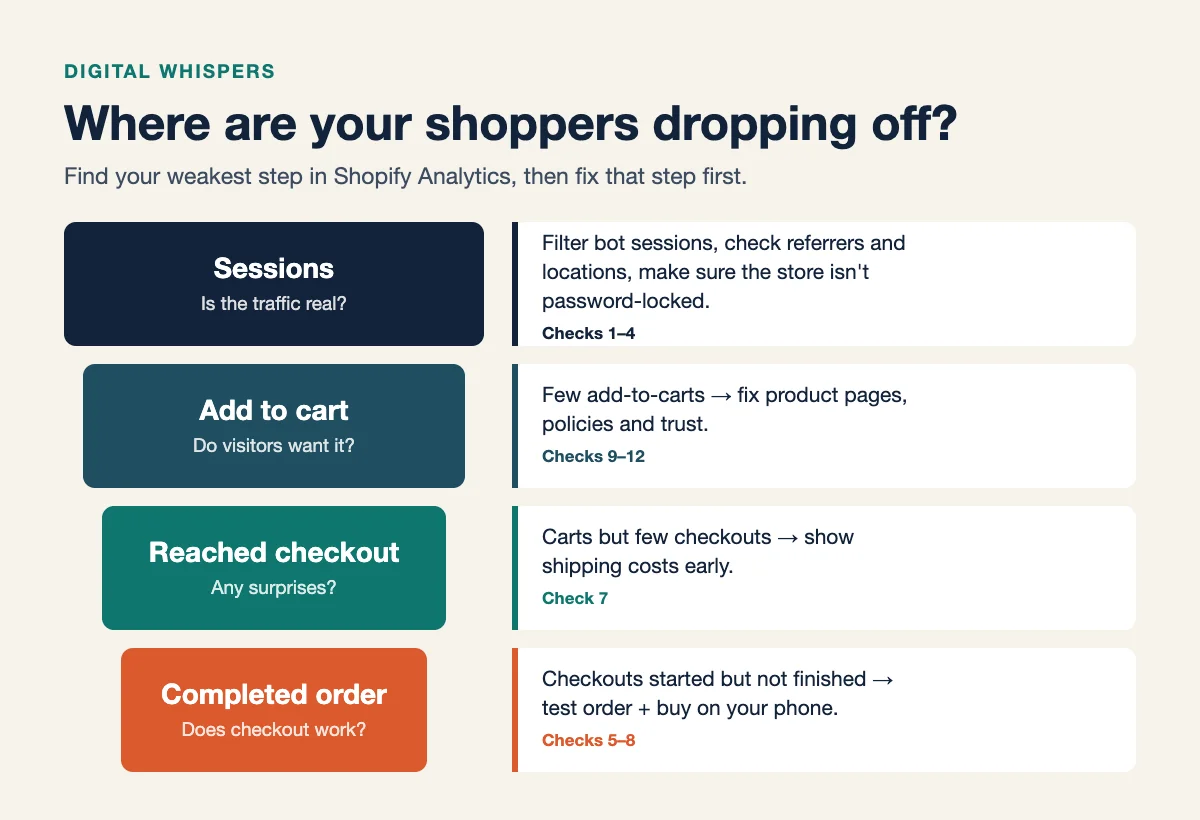
In Shopify Analytics, look at how many human sessions add a product to the cart, how many reach checkout, and how many complete it. Your weakest step tells you where to focus:
- Few add-to-carts: work on product pages and trust (points 9 to 12).
- Add-to-carts but few checkouts: look at shipping costs and cart surprises (point 7).
- Checkouts started but not finished: test the checkout itself (points 5 to 8).
Week 2: Does your checkout work on a phone?
5. Place a test order
Shopify lets you run a test order through its test payment gateway, or through Shopify Payments in test mode, without being charged. Two things to know from Shopify’s help center: you can only test a payment gateway after choosing a paid plan, and customers can’t place real orders while your payment provider is in test mode. Turn test mode off when you’re done. Not sure which plan to pick after the trial? See Shopify Basic vs Grow.
6. Buy something from your own phone
Do a full run as a new customer on mobile: home page, product, cart, checkout, confirmation email. Note every moment you hesitate. Is the add-to-cart button visible without scrolling? Does a pop-up block the page? Do the confirmation and shipping emails arrive?
The mobile issue I most often fix is a cluttered cart-to-checkout experience. Checkout buttons can be difficult to find or tap, and overlapping elements or poor spacing can frustrate shoppers. I test the entire buying process on mobile and adjust the layout to make checkout simple, clear, and smooth.
7. Remove shipping-cost surprises
A shopper who sees shipping for the first time at checkout often leaves. Show shipping costs or a clear “free shipping over $X” line on the product page and in the cart, and make sure the rate at checkout matches.
8. Offer the payment methods your buyers expect
Check which payment methods appear at checkout and make sure the common ones for your market are switched on. If you use a payment provider other than Shopify Payments, Shopify charges an extra transaction fee on top of the provider’s (2% on Basic as of November 2026), so weigh that before adding one.
Week 3: Would a stranger trust your store?
9. Make product pages answer the buyer’s questions
For each best-selling product, check that the page answers: what is it, what size or fit, how long does shipping take, what if it doesn’t work out? Use real photos where you can, and write the description for a buyer, not a supplier catalog.
10. Publish clear policies
Shipping, returns and refund policies should be easy to find from the product page and footer. If a first-time buyer can’t see what happens when something goes wrong, they have less reason to risk an order with a store they’ve never heard of.
11. Show there’s a real business behind the store
Add an About page, a contact email and, if you have one, a business address. Check that your store name, logo and domain look consistent across pages.
I add trust elements from the start, including customer reviews, clear shipping and return policies, contact information, FAQs, secure checkout messaging, and recognized payment options. I also make sure the store has professional product pages, consistent branding, and transparent policies so customers feel confident before placing an order.
12. Speed it up
Remove apps you aren’t using, compress large images and avoid heavy pop-ups on mobile. Test your home page and your top product page with Google’s PageSpeed Insights and fix the biggest issues it flags first.
Week 4: Win back the people who almost bought
13. Turn on Shopify’s abandoned checkout emails
Shopify can email shoppers who started checkout and left, but you have to switch it on. According to Shopify’s help center, a checkout counts as abandoned when it stays incomplete for more than ten minutes after the customer entered their email, and you choose the delay before the email is sent. The help center currently lists the setting under Apps > Messaging > Automations.
14. Add a free welcome and cart recovery flow
Shopify’s built-in email covers checkout abandonment. To also reach new subscribers and people who added to cart, an email tool with ready-made workflows helps. Omnisend’s Free plan includes pre-built workflows for cart abandonment, welcome series and post-purchase messages, with up to 250 contacts and 500 emails per month as of November 2026. Free plan emails keep Omnisend’s logo.
A simple starting point: a welcome email with your best-sellers, then a three-email cart reminder.
If you want the cart flow set up today, Omnisend lets you start on the Free plan.
15. Fix the traffic source, not just the store
If the store checks out but human visitors still don’t buy, look at who you’re sending. Broad ads, giveaway traffic and unrelated social posts bring visitors who were never going to buy. Compare add-to-cart rates by referrer and pause the sources that never produce one.
Your 30-day plan at a glance
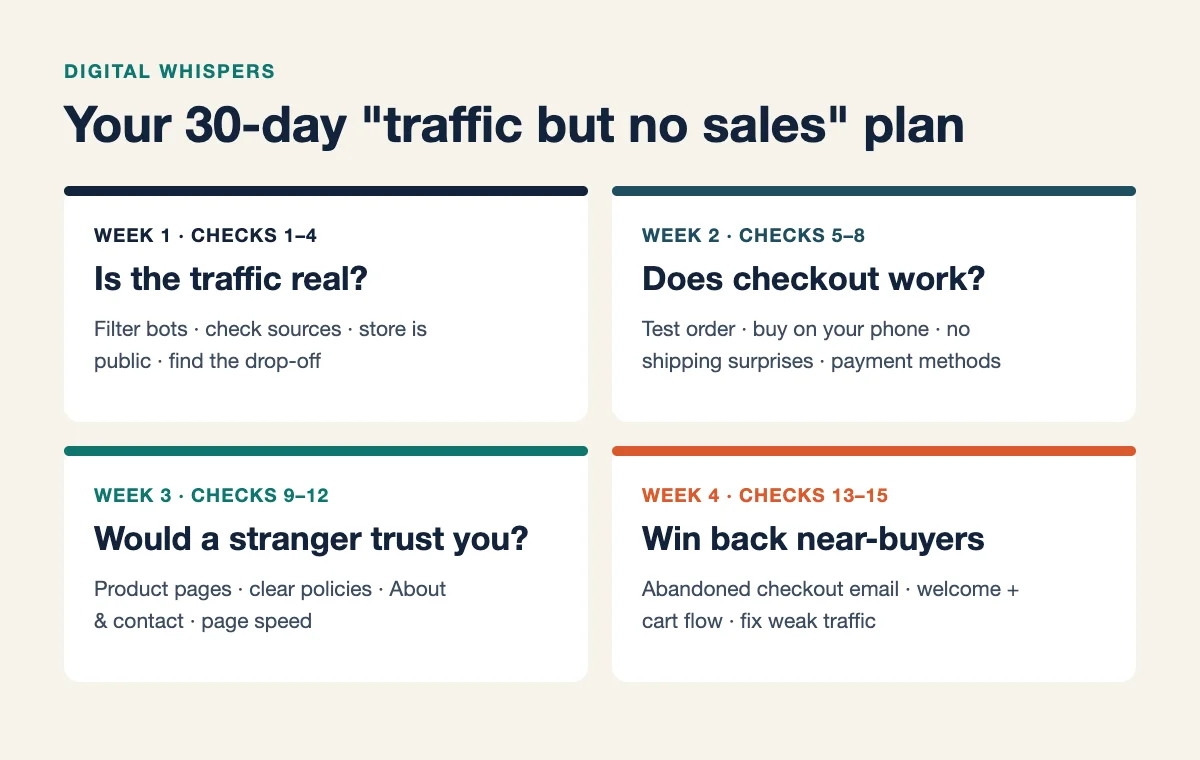
| Week | Focus | Checks | Done when |
|---|---|---|---|
| 1 | Traffic is real and the store is open | 1 to 4 | You know your human sessions and your weakest funnel step |
| 2 | Checkout works on mobile | 5 to 8 | A test order and a phone purchase go through cleanly |
| 3 | Trust | 9 to 12 | Top product pages, policies and About page are complete |
| 4 | Recovery and traffic quality | 13 to 15 | Recovery emails are live and weak traffic sources are paused |
Who should skip this checklist?
- Stores with almost no human traffic. If point 1 shows only a few real visitors a week, conversion isn’t your problem yet. Spend the month on one traffic channel instead.
- Stores that haven’t launched. If you’re still on the trial and setting up, start with my guide to launching your first Shopify store for $1/month.
- Stores selling mostly in person. Your sales live in your point-of-sale reports, so online session numbers will tell you less.
FAQ
How many visitors do I need before I should expect a sale?
There’s no fixed number, and conversion rates vary a lot by product and price. Instead of waiting for a magic number, filter out bots and look at whether real visitors add to cart. If they do but don’t buy, fix checkout. If they don’t, fix product pages or traffic.
Why do I have add-to-carts but no orders?
Usually a surprise at checkout (shipping cost, delivery time, missing payment method) or a broken step. Run a test order and a full purchase on your phone (points 5 and 6).
Is my Shopify traffic fake?
Some of it may be. Use the “Human or bot session” filter in your sessions reports and check Sessions by location for countries you don’t ship to.
Do I need a paid app to recover abandoned carts?
No. Shopify’s own abandoned checkout email is built in once you turn it on, and Omnisend’s Free plan includes pre-built cart abandonment workflows within its contact and email limits.
The bottom line
Traffic with no sales is a diagnosis problem before it’s a marketing problem. Spend week one making sure your traffic is real and your store is open, week two making checkout work on a phone, week three earning trust, and week four recovering the shoppers who almost bought.
Ready to set up your recovery emails? Start with OMNISEND . Haven’t opened your store yet? Start your Shopify trial here: SHOPIFY
Free: Online Store Launch Checklist
A step-by-step checklist to take your store from idea to first sales. Enter your email and get it instantly.

RELATED POSTS
View all

Start Your Blog in 2026: Easy Beginner Guide
August 19, 2025 | by Abdisalat Mohamed
Shopify vs Etsy for Beginners: Simple Math on Hidden Fees
October 14, 2026 | by Abdisalat Mohamed

Thinkific Pricing 2026: Every Plan Explained (Honest Review From a Course Creator)
April 26, 2025 | by Abdisalat Mohamed